Pada tutorial berikut akan dibahas cara upload file gambar kedalam folder pada aplikasi asp.net mvc. Nama file yang berhasil di upload juga akan disimpan kedalam database.
Sebelumnya buat model Author dan data context terlebih dahulu, kemudian jalankan perintah migrasi untuk menggenerate table Author di database.
1: public class Author
2: {
3: public int AuthorID { get; set; }
4: public string FullName { get; set; }
5: public string Email { get; set; }
6: public string PicUrl { get; set; }
7: }
1: public class SampleContext : DbContext
2: {
3: public DbSet<Author> Authors { get; set; }
4: }
Jalankan perintah untuk migrasi:
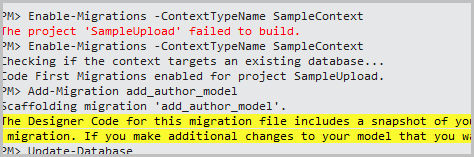
Pada solution explorer buat folder Images yang digunakan untuk menyimpan file.
Setelah database berhasil dibuat, tambahkan AuthorController untuk menampilkan data Author, dan menambahkan data Author baru sekaligus mengupload file.
1: public class AuthorController : Controller
2: {
3: private SampleContext db = new SampleContext();
4: // GET: Author
5: public ActionResult Index()
6: {
7: var model = db.Authors.OrderBy(a => a.FullName);
8:
9: return View(model);
10: }
11:
12: // GET: Author/Create
13: public ActionResult Create()
14: {
15: return View();
16: }
17:
18: // POST: Author/Create
19: [HttpPost]
20: public ActionResult Create(Author author, HttpPostedFileBase file)
21: {
22: if (ModelState.IsValid)
23: {
24: if (file != null)
25: {
26: string pic = Path.GetFileName(file.FileName);
27: string path = Path.Combine(Server.MapPath("~/Images"), pic);
28: file.SaveAs(path);
29:
30: /*using(MemoryStream ms = new MemoryStream())
31: {
32: file.InputStream.CopyTo(ms);
33: var arr = ms.GetBuffer();
34: }*/
35:
36: var newAuthor = new Author
37: {
38: FullName = author.FullName,
39: Email = author.Email,
40: PicUrl = pic
41: };
42: db.Authors.Add(newAuthor);
43: db.SaveChanges();
44: }
45: }
46:
47: return RedirectToAction("Index");
48: }
49: }
Tambahkan view Index.cshtml untuk menampilkan data:
1: @model IEnumerable<SampleUpload.Models.Author>
2:
3: @{
4: ViewBag.Title = "Daftar Author";
5: }
6:
7: <h2>Daftar Author</h2>
8:
9: <p>
10: @Html.ActionLink("Create New", "Create")
11: </p>
12: <table class="table">
13: <tr>
14: <th>
15: @Html.DisplayNameFor(model => model.FullName)
16: </th>
17: <th>
18: @Html.DisplayNameFor(model => model.Email)
19: </th>
20: <th>
21: @Html.DisplayNameFor(model => model.PicUrl)
22: </th>
23: </tr>
24:
25: @foreach (var item in Model) {
26: <tr>
27: <td>
28: @Html.DisplayFor(modelItem => item.FullName)
29: </td>
30: <td>
31: @Html.DisplayFor(modelItem => item.Email)
32: </td>
33: <td>
34: <img src="~/Images/@item.PicUrl" alt="pic" width="100"/>
35: </td>
36: </tr>
37: }
38:
39: </table>
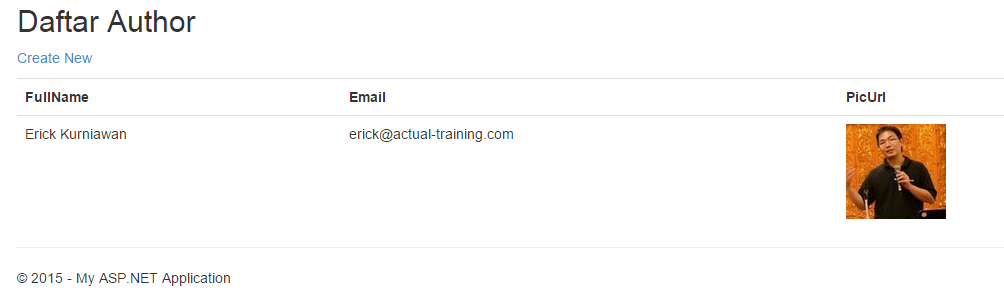
Tambahkan juga view Create.cshtml yang digunakan untuk menambahkan data Author baru.
1: @model SampleUpload.Models.Author
2:
3: @{
4: ViewBag.Title = "Create";
5: }
6:
7: <h2>Tambah Author</h2>
8:
9:
10: @using (Html.BeginForm("Create", "Author", FormMethod.Post, new { enctype = "multipart/form-data" }))
11: {
12: <div class="form-horizontal">
13: <hr />
14: <div class="form-group">
15: @Html.LabelFor(model => model.FullName, htmlAttributes: new { @class = "control-label col-md-2" })
16: <div class="col-md-10">
17: @Html.EditorFor(model => model.FullName, new { htmlAttributes = new { @class = "form-control" } })
18: </div>
19: </div>
20:
21: <div class="form-group">
22: @Html.LabelFor(model => model.Email, htmlAttributes: new { @class = "control-label col-md-2" })
23: <div class="col-md-10">
24: @Html.EditorFor(model => model.Email, new { htmlAttributes = new { @class = "form-control" } })
25: </div>
26: </div>
27:
28: <div class="form-group">
29: @Html.LabelFor(model => model.PicUrl, htmlAttributes: new { @class = "control-label col-md-2" })
30: <div class="col-md-10">
31: <input type="file" name="file" id="file" />
32: </div>
33: </div>
34:
35: <div class="form-group">
36: <div class="col-md-offset-2 col-md-10">
37: <input type="submit" value="Create" class="btn btn-default" />
38: </div>
39: </div>
40: </div>
41: }
42:
43: <div>
44: @Html.ActionLink("Back to List", "Index")
45: </div>
46:
47: @section Scripts {
48: @Scripts.Render("~/bundles/jqueryval")
49: }
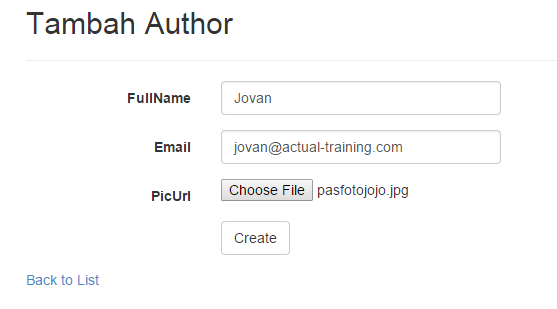
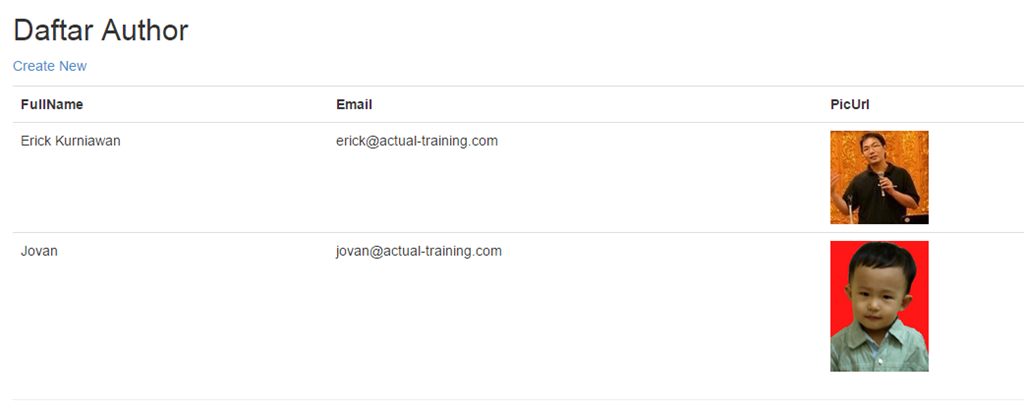
Setelah data ditambahkan, maka data baru beserta pic akan ditampilkan.
Selamat mencoba and Happy Coding 
 Erick Kurniawan
Leave a comment